
Detour: Proxy Switcher & Free Proxy
Free proxy extension for Chrome and Edge: switch proxies and change the IP websites see in one click.
Your browser asks "Add Detour: Proxy Switcher & Free Proxy?" before installing. No download needed.
Detour is a free proxy switcher and proxy manager for Chrome, Edge, Brave and Opera. Connect through a proxy in one click and change the IP address and country websites see.
Save all your proxies in one place and switch between them instantly. Paste them in any format: HTTP, HTTPS, SOCKS4 or SOCKS5, with or without a username and password (host:port, host:port:user:pass, user:pass@host:port).
No proxy of your own? Click "Use a free proxy" and Detour finds a free proxy that's working right now. No sign-up needed.
Detour shows your current IP address and country, so you can check your proxy is working. It tests every proxy before connecting, so a dead proxy never cuts off your internet, and it tells you plainly why a proxy failed: not answering, too slow, wrong password or address not found.
Your proxies and passwords stay in your browser. No account, no ads, no tracking.
Good to know: a proxy can see which sites you visit, so use proxies you trust. Detour isn't a VPN; it only changes how your browser connects.
- One-click proxy switcher
- Free proxy, no sign-up
- Shows the IP address and country websites see
- HTTP, HTTPS, SOCKS4 and SOCKS5 proxies
- Paste proxies in any format, like host:port:user:pass
- Logs in to HTTP proxies with a username and password
- Checks a proxy before connecting, so you're never cut off
- Tells you why a proxy isn't working
- Disconnect in one click
- No account, no ads, no tracking
Requires Chrome, Edge, Brave, Opera or another Chromium browser (version 108 or later)
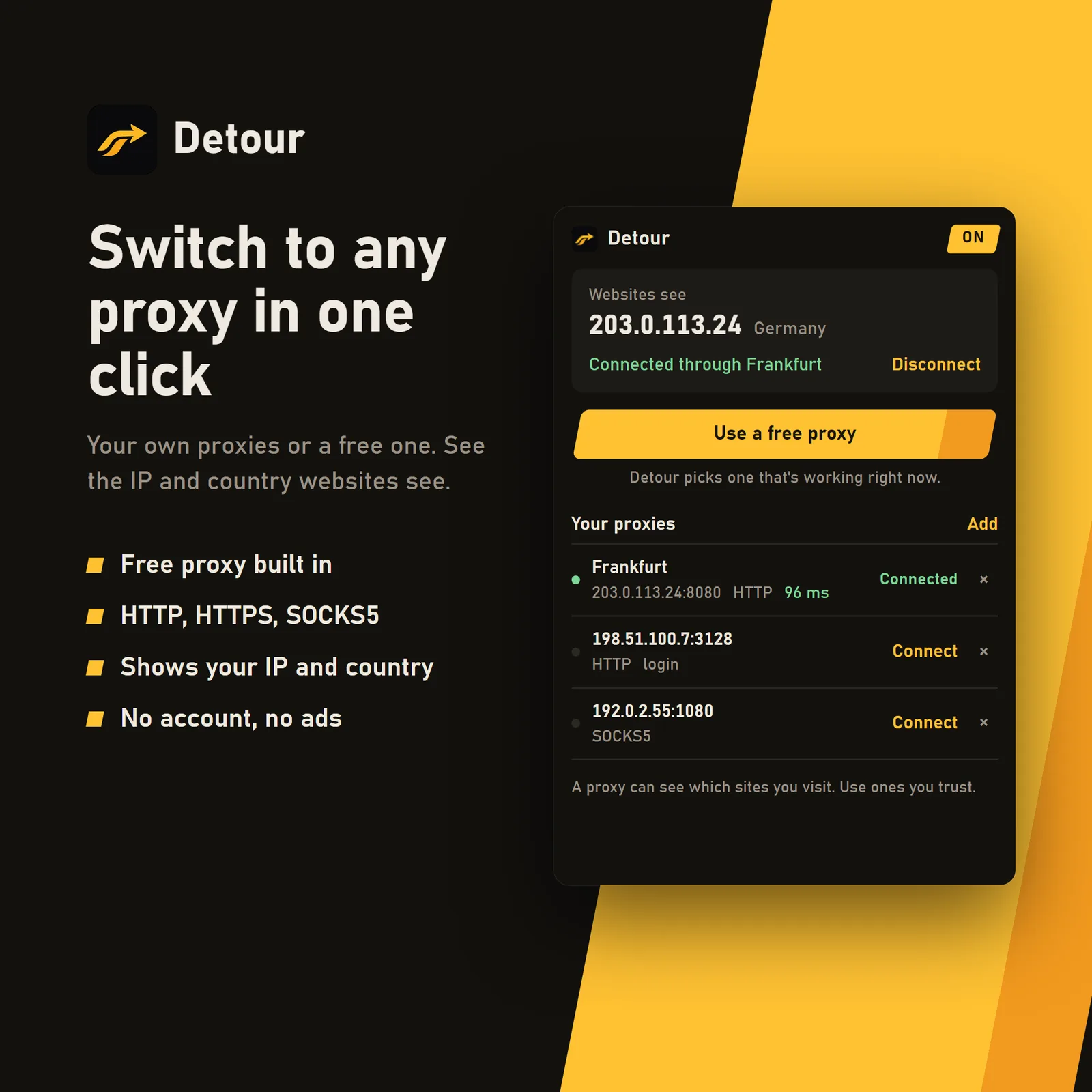
- One-click proxy switcher
- Free proxy built in
- Shows your IP and country
- No account, no ads
Installing a browser extension
With an Add to Chrome or Add to Edge button it's one click. Otherwise, three steps.
Add it from the store
Use Add to Chrome or Add to Edge, then choose Add extension when your browser asks. That's all. Brave and Opera can install from the Chrome Web Store too.
No store button? Download and unzip
Use the Download button, then extract the .zip to a folder you'll keep, and check its SHA-256 with the command below.
Load the folder
Open chrome://extensions or edge://extensions, switch on Developer mode, select Load unpacked and choose the folder you extracted.
Get-FileHash "$HOME\Downloads\extension.zip" -Algorithm SHA256