Boltap
Free auto clicker for Minecraft and Windows: hold to click, up to 1000 CPS.
Version 1.0.0 · 5.6 MB · 13 Nov 2026
By downloading, you agree to the Terms of Service.
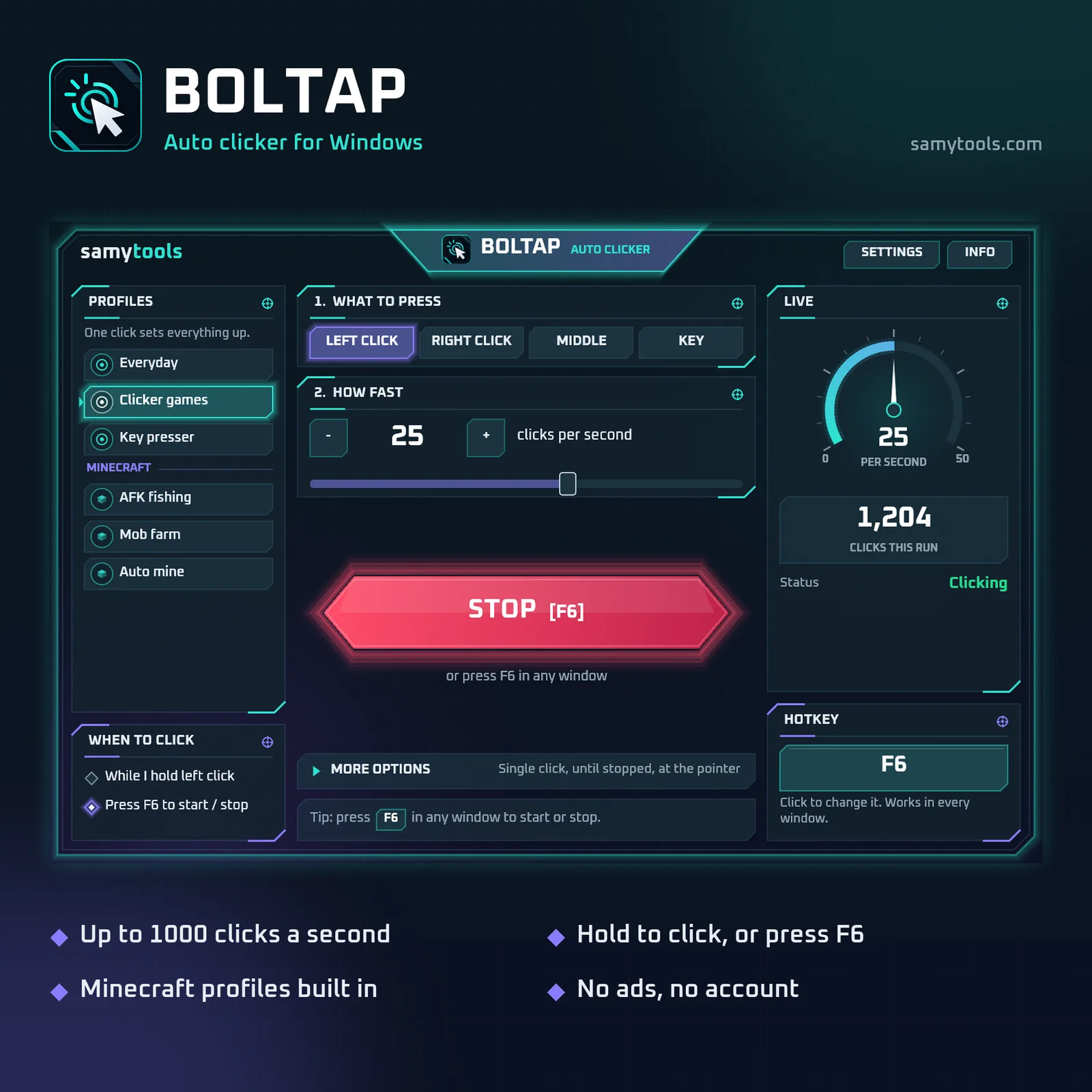
Boltap is a free Minecraft auto clicker for Windows. Hold your mouse button and it clicks for you, from 1 click every few seconds up to 1000 clicks per second (CPS).
How it works: pick left click, right click, middle click or a keyboard key, and set the speed. Press F6 to switch Boltap on, then hold that button in your game to auto-click. Let go and it stops. Prefer it the classic way? Press F6 to start and F6 again to stop.
Ready for Minecraft with one-click profiles:
- AFK fishing: holds right click for your fish farm
- Mob farm: hits each time your sword or axe is fully charged
- Auto mine: holds left click
Boltap can also pause by itself while Minecraft isn't the window in front.
Works in any Windows game or app too. Click at the pointer, at one spot or at several spots in turn, repeat a set number of times, or stop by itself after a while. Change the hotkey to any key or a side mouse button.
Free, no ads, no account, no internet needed.
Note: many online Minecraft servers don't allow auto clickers. Use it in single-player or where the server rules allow it.
- Minecraft auto clicker for Windows 10 and 11
- Up to 1000 clicks per second (CPS), with exact timing
- Hold left or right click to auto-click, let go to stop
- Or press F6 to start and stop
- AFK fishing, mob farm and auto mine profiles
- Mob farm timing for swords, axes, tridents and the mace
- Pauses by itself when Minecraft isn't in front
- Left, right or middle click, or any keyboard key
- Hotkey works in every window, even full-screen games
- Click at the pointer, at one spot or at several spots
- Repeat a set number of times or stop after a set time
- Free, no ads, no account
Requires Windows 10 or Windows 11 (64-bit)
- Scanned before publishing
- Scan this on VirusTotal
- Be the first to rate this app
- Get help with Boltap
Version history and SHA-256 checksums
-
Version 1.0.013 Nov 2026, 5.6 MB
cb93f4b149054cde47ec85c2db035cec605599bad7ce1958883f470d5d20a1f8
- Up to 1000 clicks a second
- Hold to click or press F6
- Minecraft profiles built in
- No ads, no account
Installing a Windows app
Three steps, and you can check the file before you run it.
Download the file
Use the Download button for the app you want. The file usually goes to your Downloads folder.
Compare the checksum
Run the command below in PowerShell. The result should match the SHA-256 listed for that version, and its VirusTotal report should show the same fingerprint.
Run the setup
Open the file and follow the setup steps, or extract it first if it's a .zip. Windows may show a SmartScreen notice for a new app; the questions below explain what it means.
Get-FileHash "$HOME\Downloads\Boltap-Setup-1.0.0.exe" -Algorithm SHA256